Use the process on this page to deep link CPM content in your LMS.
IMPORTANT: Before you start these steps, the CPM Tool must be enabled for your LMS.
Open a browser and log into your LMS if not already logged in. If needed, start by creating the course.
Deep Linking to CPM in a Course
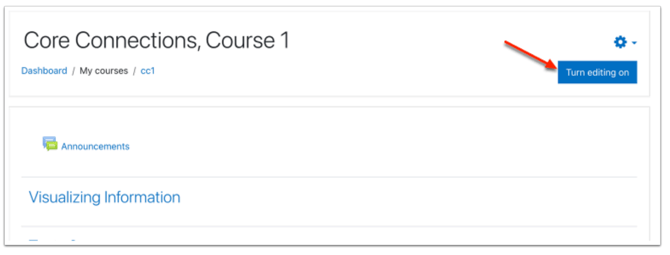
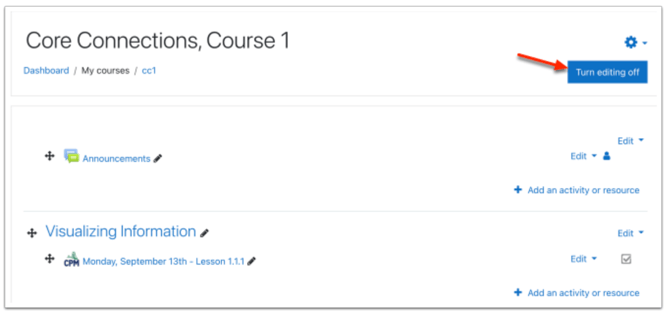
- In the desired course, turn editing on.
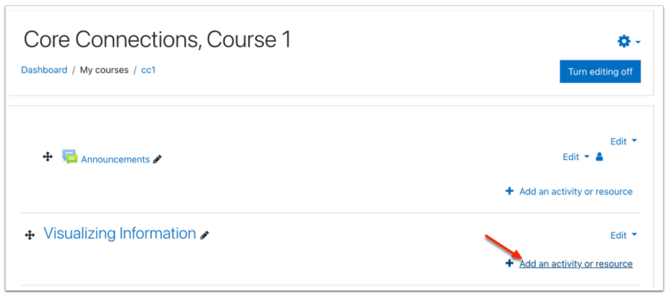
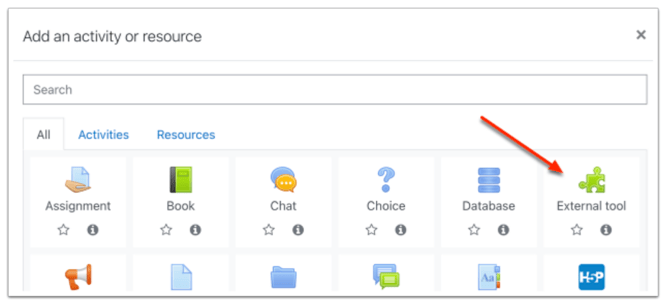
- Select "Add an activity or resource".
- Select "External tool".
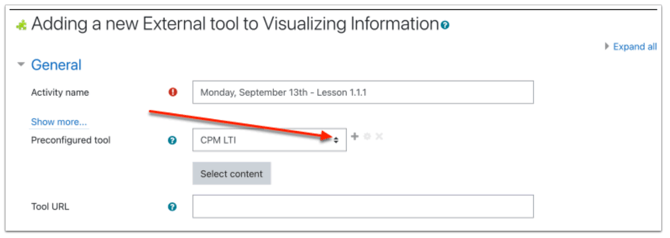
- Select your Preconfigured tool for CPM LTI.
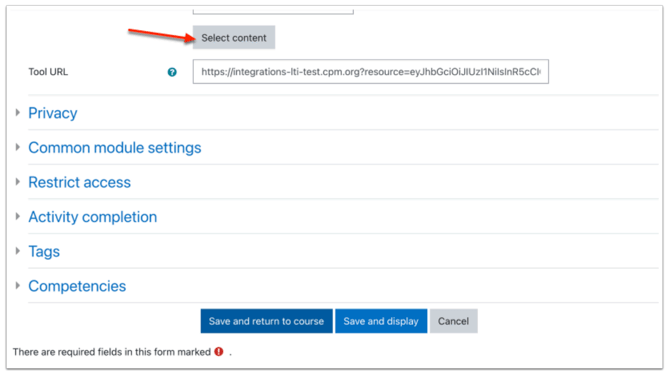
- Choose "Select content".
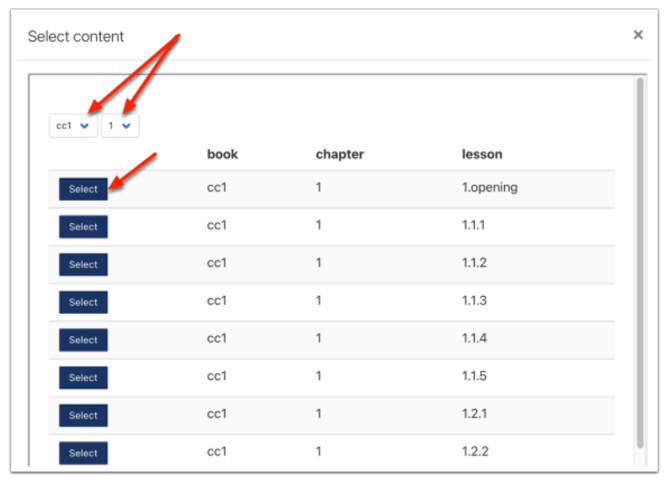
- Using the dropdown menus, select the book and chapter.
- Then choose "Select" on the needed lesson.
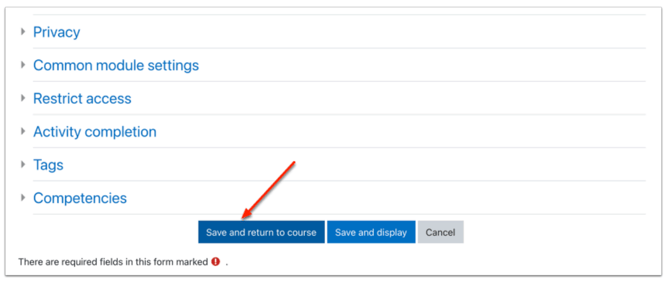
- When all needed items have been completed, select "Save and return to course".
- When finished, select "Turn editing off"
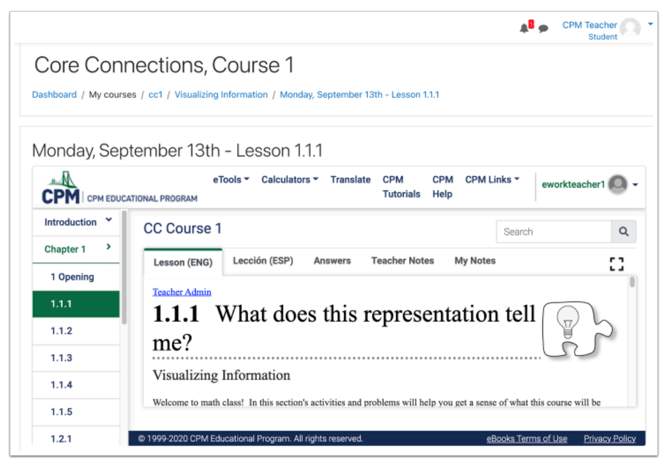
The new content will now show in your course.
Student View
Selecting the content will go directly to the problem in the CPM eBook.