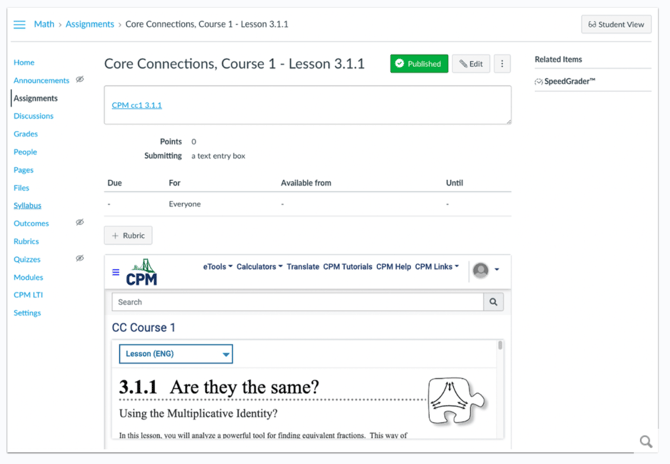
Use the process on this page to deep link CPM content in your LMS.
IMPORTANT: Before you start these steps, the CPM Tool must be enabled for your LMS.
Open a browser and log into your LMS if not already logged in. If needed, start by creating the course.
Deep Linking to CPM in a Course
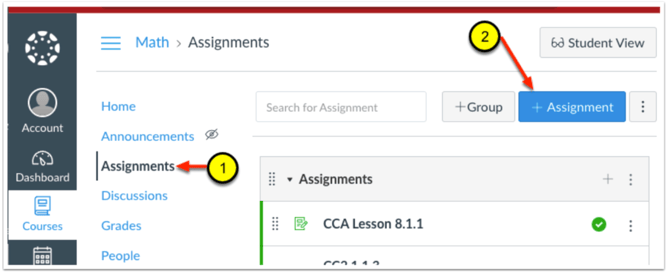
- In the desired course, select the desired placement for the lesson link from the Courses Menu. For this example Assignments was chosen.
- Select the + button to create a new assignment.
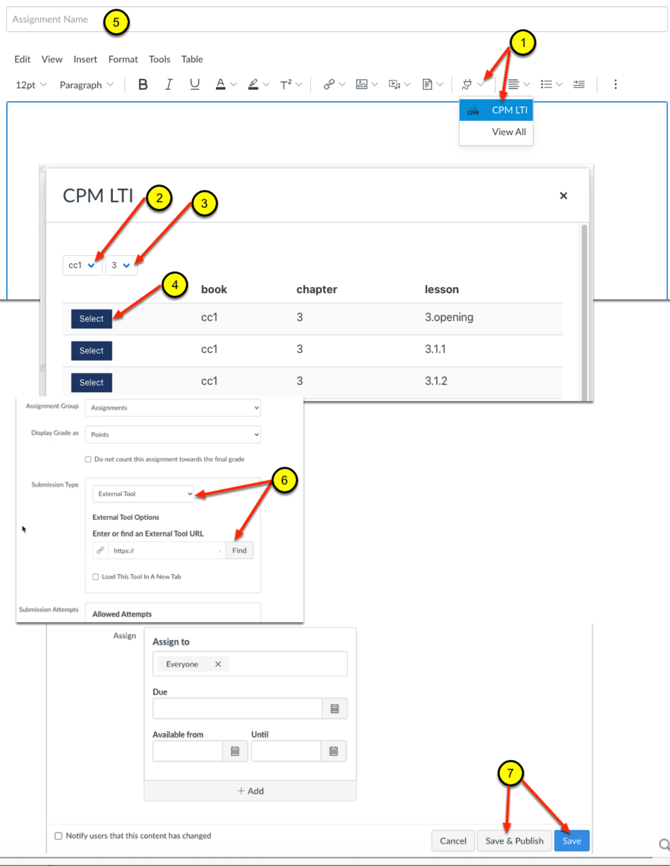
- Select the Apps icon in the tools menu to select a CPM lesson from the CPM LTI app.
- Use the drop down menu to select the eBook (if you have more than one).
- Use the drop down menu to select the chapter.
- Select the lesson with the select button.
- Fill in remaining fields such as Assignment Name.
- You can include the CPM lesson in an iFrame by selecting the CPM LTI tool in the Submission Type section.
- Save & Publish or Save.
The selected lesson will now display in the assignment.