Sticky licenses allow you to provide digital curriculum access to teachers that would not otherwise receive one through the automated rostering process. Common uses include providing access to a teacher before or after the teacher's class dates, or assign licenses to a co-teacher for a class. Sticky licenses do occupy a digital curriculum license.
How to assign sticky licenses:
Step 1: Navigate to Sticky Licenses
- Once logged in at integrations.cpm.org choose EDIT on the Sticky Licenses tile from the dashboard.
Step 2: Select "Add Sticky License" and Primary School
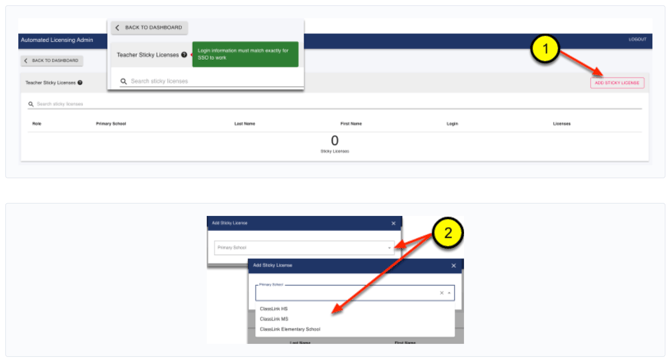
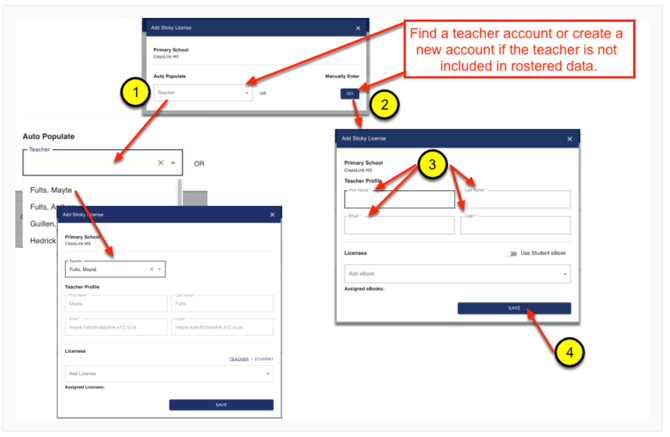
Step 3: Add staff using Auto Populate or Manually Enter (GO button)
- Select a rostered teacher from the Auto Populate Teacher dropdown list and SAVE.
- Or select GO to Manually Enter a new account.
- Add the First Name, Last Name, Email and Login for the new account. Email and Login must match the format required for your SSO - see the green help note on step 2 above.
- SAVE
Step 4: Select the license for the staff member
- Select a digital curriculum license from the Add License dropdown menu.
- Repeat to add additional license(s).
- Select SAVE when Sticky Licenses assignment(s) are complete.
- You can also remove Sticky Licenses with the trash icon.
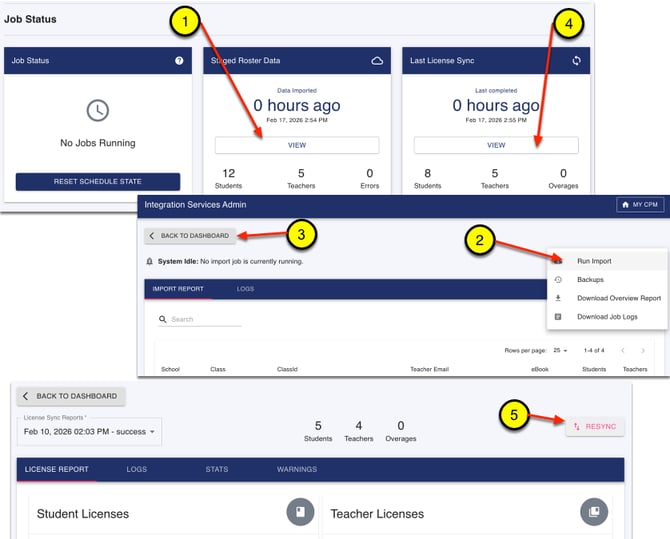
Sticky licenses will automatically assign during the nightly sync. To immediately assign the new sticky license, run a manual import and resync the licenses.
- From the Staged Roster Data tile on the dashboard select VIEW.
- Select Run Import from the Actions dropdown menu.
- Select BACK TO DASHBOARD. Make sure the import has completed and the Staged Roster Data tile says "0 hours ago". You may need to refresh your browser.
- From the Last License Sync tile on the dashboard, select VIEW.
- To assign new sticky licenses, select RESYNC.